How to boost the internet speed on an Android mobile phone
Android download speed is slow because of your apps, browser, and system limitations and restrictions on bandwidth usage. Do something. It should optimise the download process.
Actually, most users confuse “internet speed” and “download speed”. They are not the same thing but are associated.
You can have very fast internet browsing but very slow downloading because the application’s server has limited it.
Boost Download Speeds
- Better connection (stable Wi-Fi or a good LTE signal rather than poor 5G).
- Close down all other downloads and streaming applications.
- Disable battery saver during download(s).
- Use contemporary protocol browsers (i.e., Chrome or Firefox).
- Restart massive downloads as you get back onto a better connection.
The ONE thing that most people never look at
Battery Saver can really clamp down on your background network use.
This means it’s actually slowing down downloads to save power.
Another Typical Failure Scenario
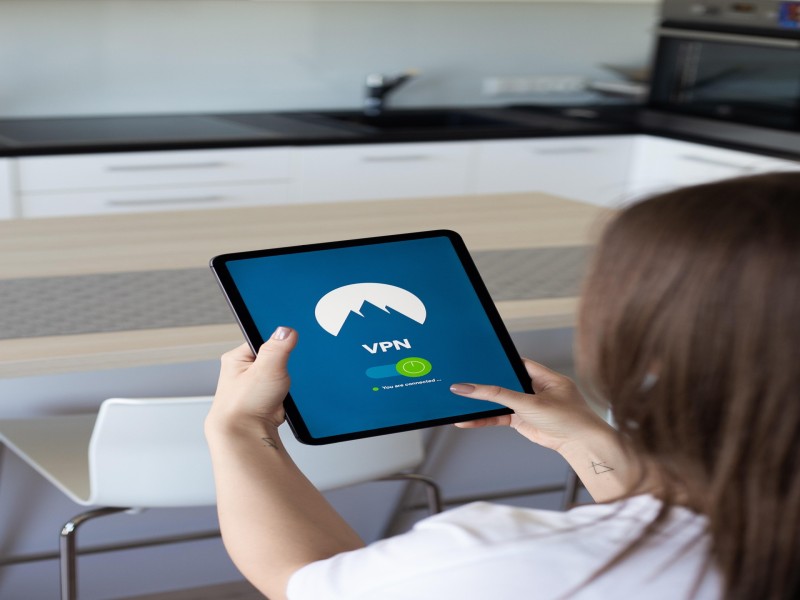
VPNs often decrease download speeds, particularly free ones. Most users consider their network slow when, in fact, the VPN server is simply experiencing too much traffic.
Turn the VPN off and check the speeds again; it can make a huge difference.
These two settings are kept hidden in developer options—and they really do work.
Two settings to search for here are Wi-Fi scan throttling and mobile data always being active. When scan throttling is enabled (by default, it is turned on), your phone will slow down how often it checks for better Wi-Fi signals, and it can actually cause your signal to feel “jerky” if you move between rooms or if your router signal varies. Turning this off will make it so your phone will respond much quicker.
‘Mobile data always on’ is the second one. Turning this on maintains a cellular connection for standby even when on Wi-Fi, so when you lose Wi-Fi, the handoff from cell is instantaneous—rather than the 3-5 seconds of no loading that most experience.
To get into Developer Options:
- Go into Settings > About Phone > Software Information.
- Tap the build number 7 times, and you should receive a pop-up saying “You are now a developer.“
- Go back to Settings > Developer Options.
- Scroll down and disable “Wi-Fi scan throttling”.
- Enable “Mobile data always active”.
These are actual configurations on Android that just aren’t displayed to the user because they do not need them. But that no longer applies to you.
Boost WiFi Speed on an Android Phone Without Spending Any Money
Wi-Fi issues occur most of the time when the signal is being interrupted, when there are too many networks trying to communicate on the same channel, or when the placement of your router is incorrect.
Do the following: Optimize the Wi-Fi settings before getting pissed off at your ISP.
Usually, people simply reboot the router and nothing else, but signal interruption at home, mainly on 2.4GHz networks, where there is always too much chatter, is the worst enemy to speed.
This is what everybody is not telling you. Your neighbour’s wifi network could slow down yours. Basically, all apartment buildings are Wi-Fi battlegrounds.
Switch to 5GHz Wi-Fi.
If your router has dual-band:
- Go to Wi-Fi settings.
- Connect to the 5GHz one, not the 2.4GHz one.
- Don’t stray too far from the router.
The 5GHz one has way better speeds but has a short range. That’s why the internet is so terrible, another room over.
Move Your Router Higher Up
The router placement is one of the most underestimated things out there.
- Keep it away from the back of TVs or metal items.
- Keep it off the floor and at least 1 foot high.
- Try to keep it away from corners and confined cabinets.
An unusual fix.
Bluetooth devices can sometimes interfere with 2.4GHz Wi-Fi signals. Sometimes, wireless headphones or keyboards and “smart” objects might not be speeding things up as much as you expect without even noticing.
If your Wi-Fi seems to be running slow despite everything, it could really be your DNS.
Your internet might be running slowly due to your DNS settings.
The problem is that Android is taking too long to find the correct web address on your DNS server. What to do: Change your DNS to a faster provider.
Basically, the DNS is like the Internet’s phonebook. Your phone, for example, asks the DNS server for the location of a web address before it can open the website.
If this search takes too long, it will always feel slow.
Set up DNS on Android
- Open Settings > Network & Internet > Private DNS.
- Choose Private DNS Provider Hostname.
- Try one of these:
- 1.1.1.1.cloudflare-dns.com
- dns.google
Cloudflare DNS seems to be faster in terms of latency, and Google DNS appears very reliable.
Why This Works
A lot of carriers also overwork their default DNS servers. When switching to a different provider, you’ll immediately experience an increase in responsiveness, especially when the system is under heavy load.
Here, the difference is slight but significant:
- It will load applications more quickly.
- It will load websites more quickly.
- It will reduce the lag time before the video starts.
How it could fail: If you have poor signal strength to begin with, then this will probably help less. It means that the signal just can’t reach any cell towers!
Now that leads into a second large issue I don’t think enough people understand.
Usually, the real issue is a low signal strength.
A weak signal causes a drop in Android speed by making the connection less stable and forcing a lot of retransmissions. The trick here is to work on the signal before messing with the software.
This is where the cold, hard reality sets in; no setting can entirely overcome a poor signal.
You can download and use every “internet booster” app on the planet, but if your phone can barely receive a signal from the tower, it is going to crawl.
The weird thing
Even with 2 bars on a phone, you may not get ‘usable speed’. In many ways, modern networks are concerned more with signal quality and less with just raw signal strength.
The “full bar” signal in a crowded city may give less usable speed than 2 bars in the middle of nowhere.
Useful & Working Solutions
- Move into windows or wide-open spaces.
- The elevators, basement, and thick concrete walls are a no-go.
- Stay out of elevators, basements, and thick concrete walls that are thick.
- Take the phone outside for a test to compare it with.
- Rotate your phone a little while testing your speeds.
Yeah, that last one is a bit odd, but how the phone’s antenna is placed inside is important to people.
A second unseen factor:
Rush hour slows everything to a crawl in packed places like stadiums, markets, and the college.
That’s why your internet runs like heaven in the middle of the night and like death when it’s evening.
If your signal is quite good but your download speed is still slow, you may be lagging in the phone’s software and hardware.
Your internet speed could also be limited by your old phones or SIMs
Slow internet in Android is frequently due to outdated hardware not being capable of handling the newer capabilities that present networks boast. Here is how to address the problem: update the software and your SIM card.
The first entity most people fault is the provider. However, older phones cannot cope with newer technology as efficiently.
Carrier aggregation, new LTE bands, newer Wi-Fi technologies, and newer 5G standards influence the speed of your Android device’s internet quite significantly.
Here’s the surprising tip:
An older SIM card will limit the speed of your internet.
If your SIM is about 4-5 years old or more, it is unlikely to fully utilise the new optimisation provided by carriers; many users experienced better speeds when replacing their old SIM cards.
Perform these updates:
- Install the most recent Android updates.
- Update carrier services in the Play Store.
- Power down the phone. Wait 30 seconds, and then turn the phone back on after the updates.
- Have the carrier swap out the SIM if it’s old.
So why does a flagship phone still seem faster?
It’s not the processor alone.
It’s not just the processor; flagship phones also typically have better modems and antennas than their cheaper counterparts. This is also why one phone might receive dramatically different speeds than another using the same cell provider. But ignoring old hardware won’t just mean slower internet today; it could mean lagging far behind on network speeds even as the cell carriers add more of the new tech.
Still feeling sluggish? Maybe your carrier is being throttled.
Your Carrier Could Be Capping Your Speed
When mobile data is slow, carriers may be throttling your speeds after you exceed usage limits. What you can do: check the specifics of your plan; test a different SIM if you can.
This is probably one of the most disheartening aspects of using mobile internet.
Many unlimited plans are not truly limitless. Carriers slow down speeds during high usage or congestion if you’ve passed certain limits in your plan.
Signs of Carrier Throttling
- The internet gets very slow after usage.
- Speeds late at night.
- Sudden decrease in streaming quality.
- Varying results when using speed tests.
Test this quickly.
- Put in the competitor’s SIM and find out if it is faster.
- At the same time and at the same place, carry out the tests.
- Carry out the tests at different times of the day
If the other network is way better, it is not your phone after all.
From users on different forums, these three factors make up most people with long-standing internet speed issues:
- Poor signal strength
- Network congestion
- Carrier throttling
Nothing the app could do permanently about it.
These background apps consume your internet bandwidth in the background.
Android’s internet is slow because it continuously synchronises, updates, and uploads in the background, which still consumes your bandwidth. The technique is to remove the unnecessary background activity and reclaim your bandwidth.
You are here because you already attempted some very basic solutions, but those did not work. Normally, this is not about the signal but rather internal data fighting for bandwidth within the phone.
Cloud backups of applications, synced Google Photos, software updates, and pre-loading of videos by TikTok and security applications eat away at your bandwidth without you even knowing.
Android does a very poor job of telling you which application is stealing your bandwidth.
See Who is Using Your Internet
- Open Settings > Network & Internet > Data Usage.
- Tap ‘App Data Usage’.
- ‘Sort by Highest Data Consumption’.
- Limit background data on apps that aren’t meant to run all the time.
Pay attention to these guilty suspects.
- Cloud storage applications may upload photos to your cloud in the background, which you may not even notice.
- Video apps download clips before you ever access them.
- VPN apps may even dramatically slow down your internet speeds if their servers become too full.
Here is the opposite argument to what every blog states: some “RAM cleaner” and “speed booster” apps hinder internet speed. This is due to these applications themselves running in the background services with intrusive services. Deleting these applications usually speeds up internet access better than having them on. Unless your band usage seems abnormal, it is probably your Wi-Fi settings.
You’re in the wrong network mode on your phone.
If your internet on Android is slow, one of the main causes is that your phone can’t find a good signal and keeps fluctuating between the poor 4G, 3G, and 5G networks that are out there. Do this: force your phone to use the fastest stable network available in your vicinity.
Many people think that once they’re on 5G, they get super-fast internet. Not really. In some areas, the weak 5G will feel slower than the stable 4G+ connection, as your phone is always hopping from one cell tower to another.
The point many users ignore: the speed isn’t only about maximum Mbps; stability is far more important than the maximum speed. A strong 4G+ connection can definitely beat a weak 5G in the real-world experience.
Attempt this first
Navigate to Settings> Mobile network>Preferred network type.
Attempt these three modes and check for each:
- 5G/LTE/3G/2G auto
- LTE-only
- 5G only (if your device/plan supports this)
Perform a speed test.
And there is a surprising trend all across the tech forums: tonnes of people boost their performance simply by turning off “Auto” and using “LTE Only”.
A further problem:
Dual SIM mobiles may well degrade performance discreetly if both SIMs are always enabled. With only one network having weak coverage, your mobile will be constantly struggling to connect.
Perhaps turn the secondary SIM off for a test and then try the speeds.
Your network mode looks okay, but pages take forever to load; in that case, it’s normally one of your background apps doing it.
Conclusion
Knowing how to speed up the internet on an Android mobile is not just about knowing a particular trick but actually identifying the bottlenecks that hinder the speed of everything. Three factors can improve things significantly in most cases: being on the correct network mode, killing bandwidth guzzlers in the background, and improving the signal strength.
What gets many of us is the fact that it is rarely, if ever, actually about the internet. It’s an inconsistent 5G connection, an overburdened app, a poor indoor signal, an outdated SIM, or a throttled signal working in the background.
Frankly, that’s what is so annoying about it; you pay for a fast connection, but somehow your phone can’t even load a video sometimes.
Fix the easy things first, changing one setting at a time and retaining those that actually increase your speed. Occasionally, the difference is made by a quick 2-minute fix.
Fast internet shouldn’t be a game of chance.