My Wi-Fi is connected, but there’s no internet access
Your computer connects to your router well, but the router does not connect to the internet, or you can’t communicate with the internet via the router. They are two completely different problems with the very same interface.
Try a simple test: put 192.168.1.1 into your browser. Is the router’s page loading? Then your computer connection is perfect; it should be in your settings. Nothing loading? The computer’s network settings are in error.
Your WiFi is at full bars, with no internet. All other devices work correctly. You’ve restarted the router twice.
It’s not a signal issue; it’s an issue specific to YOUR device that’s secretly shutting down your connection, and it’s rarely what you get at the top of Google.
What this guide does differently is ignore the things it says are common and just give you solutions that will fix your issue, whether it’s an Android with a connection that has WiFi but no internet or a Windows computer.
That one test knows exactly what you will debug for the next step.
Your router is fine—so why can’t your device get through?
When just one computer out of several isn’t connected and everything else is, it is NOT your router. This problem is confined to the single device itself—the IP address is probably messed up, or the DNS isn’t working.
Most people will just reboot their router in this case. That accomplishes nothing in 10 minutes. What actually happens is that your device either has a bad IP address assigned to it, or it has an old, expired one that it won’t give up.
What is even more unexpected for many people is that your printer might be using your phone’s IP address. It is true. After sitting idle for months, it can start up and take your phone’s IP address from the router. Your phone still shows as connected, but since the router doesn’t know where it is, the data goes nowhere.
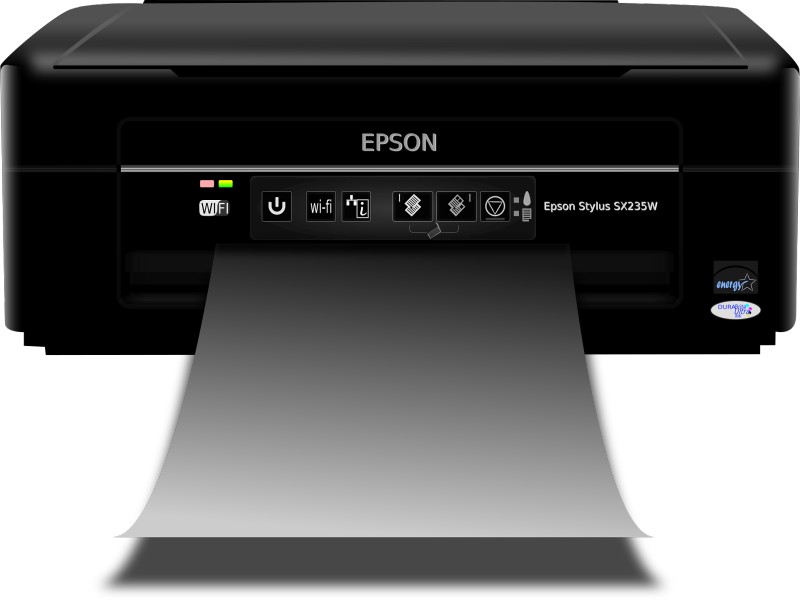
Fix it in 60 seconds:
- On Android—Go to WiFi settings, tap your network, hit “Forget,” then reconnect. This forces a fresh IP request.
- On Windows—Open Command Prompt and run ipconfig /release, then ipconfig /renew.
If this continues, log in to your router at 192.168.1.1 and view the devices attached and see if there are any IPs listed more than once.
If that isn’t it, then the next possible cause will likely be even more unexpected than what has previously been suggested and have nothing to do with any hardware on your network.
This 10-second date fix solves “no internet” more often than you’d think.
This wrong time/date is a blocker to ALL internet access, and virtually no one knows about it. Why this is so important: Every secured website you access uses a digital certificate, which has an expiry date. Your clock is telling your device these certificates are not valid, and it refuses to load anything, but your WiFi will say it’s fully connected. There will be no errors—nothing.
This problem is particularly common after a device has been factory reset, has had a battery changed, or has sat for weeks.
Fix date settings:
- Android: Settings → General Management → Date & Time → toggle Set Automatically ON
- Windows: Settings → Time & Language → Date & Time → toggle Set time automatically ON
- iPhone: Settings → General → Date & Time → Set Automatically ON
Reload your web page. In most cases, your internet should come right back on. If it doesn’t, then keep on reading because the following is a solution that seems to fix the internet connection for a majority of laptop users.
Your antivirus is silently blocking your internet connection.
Security software, primarily pre-loaded trials that come with new laptops, causes way more cases of “no internet” than most would imagine.

It installs with a high setting for network protection as a default. It monitors and filters traffic, stops DNS queries, and disables connection notifications of a type. Your WiFi still appears connected. Your web browser doesn’t load anything. There is nothing within the error message to suggest an AV is the culprit.
This practice is prevalent on new laptops from Dell, HP, and Lenovo—they often come pre-loaded with trials of McAfee or Norton and start actively scanning your network as soon as you turn the laptop on.
Test it fast:
- Temporarily disable your antivirus completely.
- Try loading a webpage.
- Internet back? The security software is your culprit.
Fix it properly on Windows:
- Press Windows + R → type msconfig → Enter
- Go to the Services tab
- Check “Hide all Microsoft services.”
- Uncheck anything labeled antivirus, security, firewall, or network protection
- Click OK → Restart
There is no need to uninstall the software; simply alter its network filtering after you discover which service is being blocked.
Android-specific fixes when your phone won’t load anything
Android has two quick bugs causing this issue, unrelated to the router:
Encryption mismatch
The router that you’re using WPA2-AES, WPA2-TKIP, or WPA3 on your older Android phone, some combinations cannot handshake—it connects but does not talk. If you have an Android that is older than 3 years, and new devices do not, you may want to try this out.
WiFi channel incompatibility
Routers with 13 or 14 enabled are undetectable by a lot of Android phones. Your phone actually “sees” the network and connects; then the phone just sits there with no connection because the phone can’t actually use the channel it is connected to.
Android fixes in order:
- Forget and reconnect—clears corrupted connection data stored on the device, forces fresh authentication.
- Toggle Airplane Mode—on for 15 seconds, then off. Forces the network stack to fully reset without losing your settings.
- Reset network settings — Settings → General Management → Reset → Reset Network Settings. Last resort, since it clears all saved WiFi passwords.
- Change router encryption—Log into router settings and switch from WPA2-TKIP to WPA2-AES. Fixes compatibility issues on most mid-range Android phones.
- Change WiFi channel — Switch from channels 12–14 to channels 1, 6, or 11 in router settings.
The 90-Second DNS Switch That Fixes “No Internet” Out of Nowhere
If the DNS server goes down on your router, then your device becomes totally blind. It is connected to the internet but can’t turn a web address into an IP, and you won’t get anything to load up.
If you instead connect through Google’s public DNS (8.8.8.8), you completely bypass the DNS server on your router, and this service is free of charge.
Fix On Windows
- Control Panel → Network and Sharing Center → Change Adapter Settings
- Right-click WiFi → Properties → Internet Protocol Version 4 → Properties
- Enter 8.8.8.8 (preferred) and 8.8.4.4 (alternate)
- Click OK
Fix On Android
- WiFi settings → tap and hold your network → Modify Network
- Switch IP settings from DHCP to Static
- DNS 1: 8.8.8.8 — DNS 2: 8.8.4.4
- Save and reconnect
Here’s a useful bit of trivia: if one of your other network devices—a printer, a smart TV, a legacy PC, etc.—happens to pick up the same IP address as the DNS server address for your router, neither Android nor iPhone devices will work. Windows devices don’t cache DNS in quite the same way and continue to function. This is a scenario that has puzzled many people for weeks until the underlying cause was discovered.
When None of These Fixes Work—Check This Last
When all else fails, and one device still can’t connect to the internet, it may be because your router is filtering by MAC address, and the device you’re trying to connect to may not be on your “allow” list.
Many routers are set to allow only particular machines to connect. In this situation, if your device is not on the approved list, it will connect to the WiFi but be denied access to the internet (this usually happens silently without any error message). So the problem is identical to any other ‘no internet’ issue.
The router is your personal network device. You’ll need to log into it and then locate the MAC filtering or access control settings and make sure that they are disabled or that your device is authorized to connect.
One other thing worth checking: the limit for the number of connections. Budget routers have a limited number of devices they allow you to connect (like 10 or 15). With smart bulbs, plugs, cameras, and TVs, you can easily exceed this limit. Take a look at the router to see how many devices are connected, and you may only need to disconnect a couple of devices that are no longer in use.
FAQs
My WiFi is connected, but there’s no internet on only my phone when everything else works. Why?
Almost certainly an IP address conflict, incorrect time/date, or a DNS error just with the device; the router and ISP must be okay, as other devices work, and the fix has to be on the device. Forgetting and rejoining the network is the quickest way to try first.
Does restarting the router fix “connected but no internet?
Only if all the devices go down at once to be restarted should it be unplugged for a full 60 secs (not just switched off). If only one device is affected, switching the router off will have absolutely no effect whatsoever.
Can antivirus software cause WiFi to show no internet?
Correct! It is a very common cause for connectivity issues on new laptops running Windows 10. Security software’s aggressive network protection can be the culprit for blocking network traffic silently while the WiFi is still connected. Disable the software for testing purposes (to be safe); if your internet connection returns, then you can adjust the settings in the security program to better filter network traffic.
My Android doesn’t show connected, but my laptop is connected. Why?
Android and Windows both manage their network security very differently. A laptop can usually run despite network errors caused by both DNS conflicts and certification problems that cripple it. Android completely. First check that the phone is set correctly to the current date and time—it takes ten seconds and is the most frequent cause of this problem.
How do I fix a WiFi connection that says “no internet connection” without touching the router?
For Windows, type “ipconfig /release” and “ipconfig /renew,” followed by “netsh winsock reset” in the command prompt, and restart. On Android, simply remove the connection, then reconnect. Another trick is to turn flight mode on and off for 15 seconds. Changing DNS to 8.8.8.8 works most of the time without even touching the router.
Conclusion
The fix is always going to be 99% one of the following:
Either an IP address problem on the device itself, a quietly crashing DNS server, or your security software intercepting traffic in the background. Work through those 3, and in almost all cases, you will have it working.
The pain is the absolute torture of “full WiFi, no Internet” when all other devices are fine and you have done the simple things. It was NOT a case that you overlooked a simple answer; the actual issue lies buried below where the standard instructions direct you.
Test the IP release fix and the DNS switch before trying anything else; they each take less than two minutes to test and solve most issues. Make a bookmark on this page for this—Wi-Fi problems do like to resurface.
An online device with no connection is not malfunctioning; it is awaiting the appropriate question.