Why Is My Phone Charging Slowly?
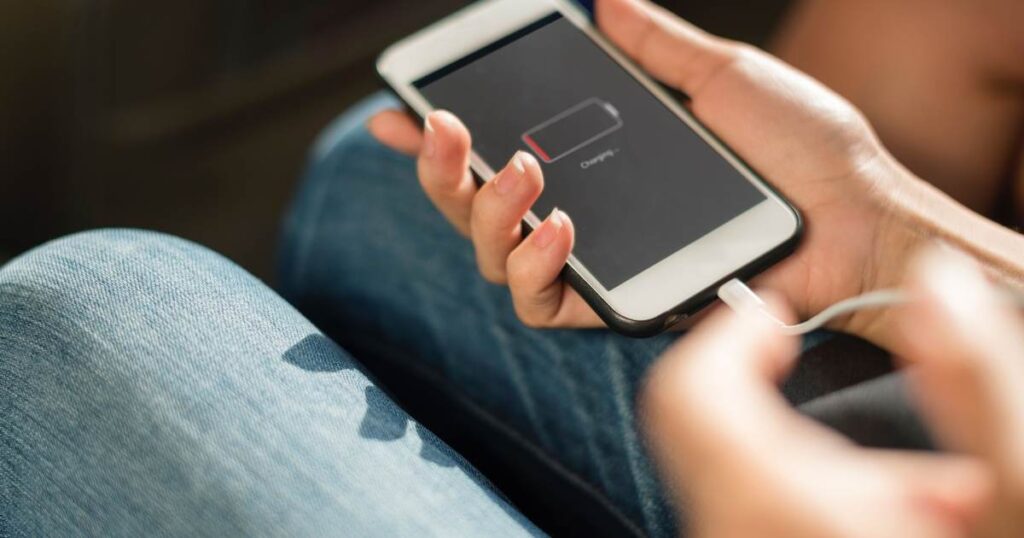
There’s nothing quite as annoying as going to bed and plugging in your phone, only to wake up and find it has only managed to charge a pitiful 40%. If you’re having slow charging issues with your phone, it doesn’t make you any less alone. Millions of Android users experience this every day, and it doesn’t usually come down to one simple factor. The real story is slow charging typically happens for one or more of the following reasons: your cable, your adapter, an app in the background, a setting you had no clue existed, and the temperature of your room—and most importantly, they are all solvable with no shop visits or new phones.
1. The Most Common Reasons Your Phone Is Charging Slow
First, let’s step back for a second and look at what exactly is happening. Almost all causes of slow charging can be traced to one or more of the following problems:
- Worn out or wrong charging cable
- Charger adapter that’s not strong enough
- Dirt and corrosion of your phone’s charging port
- Phone overheating while charging
- Software limitations to charging speed
- Overuse of your battery or screen during charging
- Worn-out battery
All of the above causes can and will significantly impact your phone’s charging speed; some can take between 6 and 8 hours for the phone to reach 100%. Let’s go through each one:
2. Is Your Charging Cable the Real Problem?
This is by far the MOST overlooked reason for slow charging and also the simplest to test.
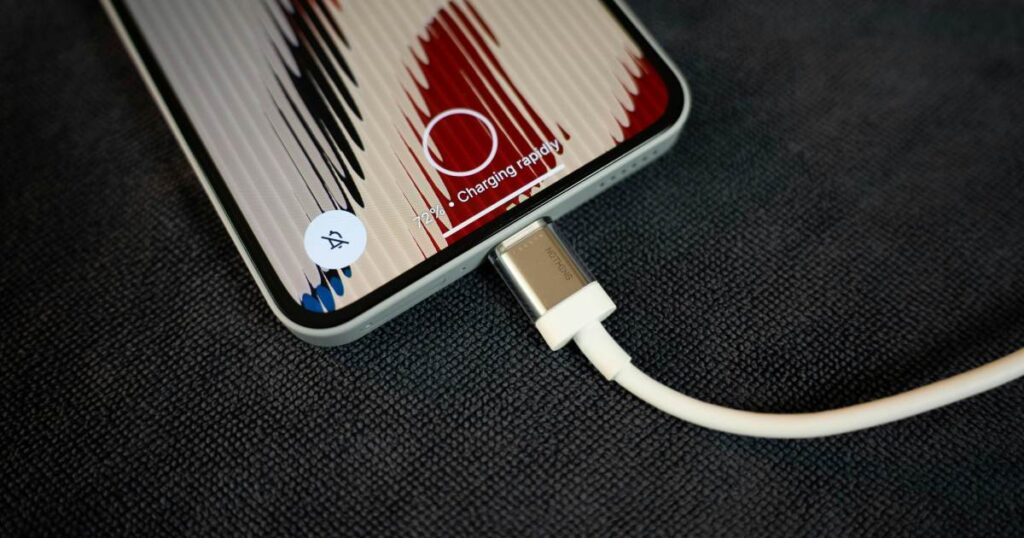
Not all USB cables are the same. While a low-quality, no-name cable might be able to physically plug into your phone’s port, it may not be able to support the wattage your charger is pushing. So, if you have recently purchased a Type-C cable and you’re still seeing your “charging slowly” notification, it is most likely your cable.
How to test your cable:
Borrow another cable from friends or family—preferably one of the cables that originally came with your phone.
- Plug this cable into your device, and see if it charges any faster.
- If your cable charges faster than this one, your cable is likely bad. Take your old cable out, and put it back with a certified cable that is recommended for your phone.
Pro-tip: when purchasing a new cable, check and make sure that it supports whatever wattage your adapter is. If you have a 25W or 45W charger, then you need a 25W or 45W charging cable. Otherwise, your charging cable is what is limiting your charger.
3. Your charger adapter may not be delivering enough power.
Everyone blames the cable, not the adapter, but it’s the lack of wattage in the adapter that’s the problem.
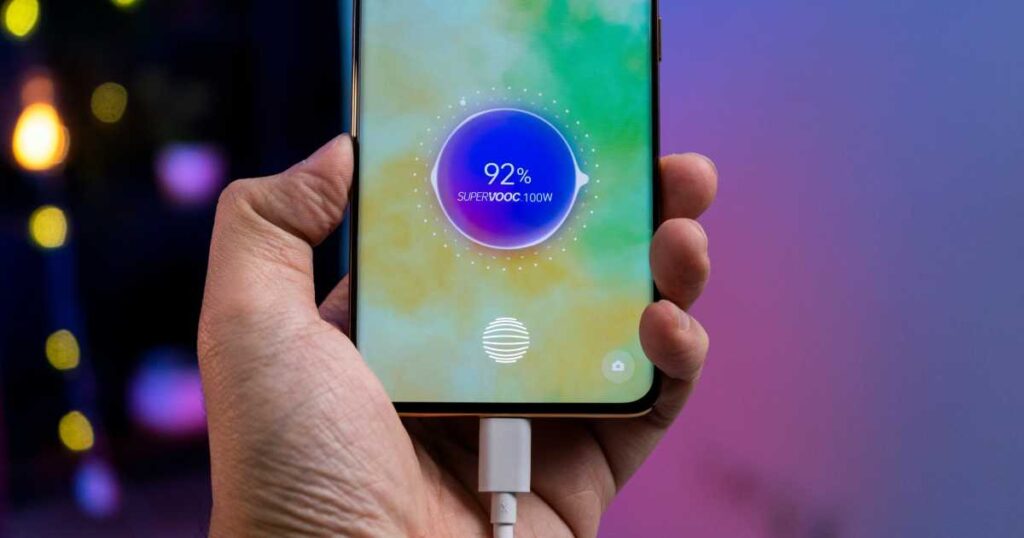
You’ve tried another cable, and the Samsung slow charging problem is still there—have you checked what wattage your charging brick has? If you are trying to charge a device with a slow 5W brick (adapter), your phone will be chugging along very slowly compared to a quick-charging 25W or 45W brick. Samsung Galaxy phones, for instance, are designed to be able to charge quickly with a high-wattage brick, so if it can’t, it won’t charge them fast.
What To Check On Your Adapter:
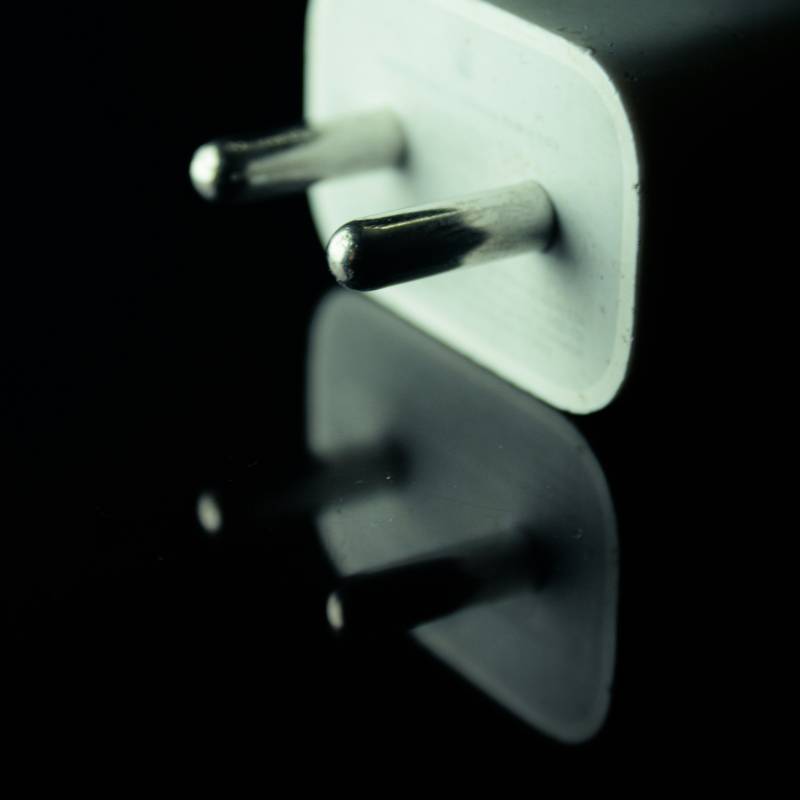
Look for a small lightning bolt on the side of your adapter, which sometimes signifies fast charging.
- Check for the wattage written on the adapter itself. If you expect any real-world fast charging from an Android these days, look for 18W at minimum and 25W at maximum.
- Always rely on the charger that came with your phone or one recommended specifically by your phone’s manufacturer.
- Relying on a charger from a completely separate manufacturer will not only give you slow charging speeds but will also wear your battery down faster over time.
4. Check Your Charging Port — It May Be Dirty or Loose
This one catches many by surprise. Every day, while you take your phone in and out of your pocket or purse, you can count on its small charger to fill itself with lint and dust. Just a small amount of lint inside your charger port can add enough resistance to slash your charging speed by as much as half or more, if not at all.
How to Clean Your Charging Port Safely
- Turn your phone completely off.
- Use a wooden toothpick or a clean, soft toothbrush to scrape gently around the inside of the charging port; do not use anything metal.
- Tip your phone downwards and blow gently around the opening to remove the loosened debris.
- Then reconnect your cable and check if your phone starts charging faster.
In addition to the above, make sure the cable fits snugly; if the cable is at all loose (and you can tell when it does not feel or sound right, or it moves around slightly inside the port), it will not establish and maintain a steady connection.
5. Overheating: The Silent Charging Killer
Your phone has been charging using a smart feature that has just prevented your battery and/or processor from overheating by slowing down the charging speed. This is not a bug but an intended feature that will make charging your Samsung or Android device and the problem of slow charging impossible.
This usually happens in one of the following situations:
- You are charging the device in bright sunlight or a very hot location.
- You have been playing a game or watching a video while charging.
- The device is charging in a bulky protective case.
- You have been using the navigation device or camera intensively.
Quick Fixes for Heat-Related Slow Charging
- Remove your phone case while charging.
- Charge in a cool, shaded place, not in your bed or under a pillow.
- Give it a rest, and let it cool for 10-15 minutes if it feels warm before plugging it in to charge.
- Don’t heavily use it when it’s charging (especially not when playing games and video streaming).
Once your phone cools down, it should charge again at the normal rate without help.
6. Software Settings That Secretly Slow Your Charging
One of the simplest and least apparent reasons for your phone not charging quickly could have been enabled on your device as part of a recent software update.
Adaptive Charging (Android / Samsung)
Adaptive charging is designed to help the long-term health of the battery by reducing how quickly it charges at the very end. On some phones, it adapts to your waking times and charges to 100% only just when you usually wake up—not hours before!
The downside of this? If your waking pattern changes—for example, you usually have to wake up at 3 am instead of 7 am—then you will wake up with the battery only having charged to 50%
To disable Adaptive Charging:
- Go to Settings → Battery → More Battery Settings
- Toggle off Adaptive Charging
Battery Protection Mode
On a few Samsung and Android phones, charging might stop at 80 or 90% by default to extend battery life over the years. This setting should be checked if you notice your phone slows down or stops charging just before 100%.
To check on Samsung:
- Go to Settings → Battery and Device Care → Battery → More Battery Settings
- Look for Protect Battery or Battery Limit and adjust as needed
Fast Charging Disabled
It seems silly, but fast charging can be disabled (manually or after an update). Make sure that fast charging is turned on:
- Settings → Battery and Device Care → Battery → More Battery Settings → Fast Charging
7. Your battery could be old.
All rechargeable batteries have an associated number of charge cycles, which are generally in the range of 300-500 full cycles before the capacity is affected. Old batteries are not just slower to take charge; they can charge quite a bit slower in the upper charge region (e.g., 80%-100%).
If your phone is two years old or older and has always been your primary device, the wear on your battery may be having an effect on the A13 slow charging issue or the generic Android slow charging problem.
How to Check Battery Health
- Samsung: Dial *#0228# in the phone app to access battery info (on some models).
- Third-party apps: Apps like AccuBattery or Ampere show real-time charging current, voltage, and estimated battery health. These are genuinely useful for diagnosing charging problems with actual data — not guesswork.
If your battery is under 80% capacity, then replacing it at an authorized center will have a huge effect.
8. Background Apps and Screen Usage are Draining Faster Than You’re Charging
Consider this scenario: The charger is supplying the power, but your phone is drawing power at the same rate (or even faster than that). You therefore achieve little to no change to the battery percentage, or even a very slow decrease.
This commonly occurs when:
- There are a large number of applications in the background.
- You have the brightness on your screen turned right up high.
- You have both location services and mobile data on during the charge.
- You are actively using your phone intensely for something else while you are charging it.
Simple Steps to Charge Faster Right Now
- Switch on airplane mode if you don’t need a connection.
- Lower the brightness of your screen or turn off the screen.
- Turn off apps in the background before plugging in to charge.
- Turn on “Do Not Disturb” so your screen doesn’t wake up with notifications.
This way of charging with the screen turned off, in a cool environment with airplane mode, gives the fastest charging result; no hardware upgrade is needed.
FAQs
Why is my phone charging slowly even though I’m using a fast charger?
To make fast charging work, you need three pieces of equipment:
A fast-charge-capable adapter, the correct wattage-rated cable, and fast charging turned on in your phone’s settings are necessary. If any of the above fail, your phone will just charge at normal speed. Test all three before declaring the charger dead.
My new Type-C cable says “charging slowly” on my Samsung — why?
This leads me on to something else: not all Type-C cables are rated for fast charging. Some cheap, unbranded cables only transfer basic power, not the large power required for fast charging. Try to get a cable rated for the charging standard of your handset (e.g., USB Power Delivery, Samsung Adaptive Fast Charging, etc.)
Why does my Android phone charge fast sometimes but slow other times?
Mostly this is due to the heat if the phone is on. If it’s warm, then it limits the speed of charging to stop the battery from damage, and if you’re actually using the phone while it’s charging, then your charging speed is fighting against the phone’s power consumption. If the phone is on, the screen is off, and it is cold, then it charges fastest.
How do I know if my battery is the problem causing slow charging?
Download one of the free applications, such as AccuBattery or Ampere; they give you the current charge rate at the moment. When your phone is in a healthy condition, charging at optimum speed, then the current reading should be somewhere in the vicinity of the expected charging current of the phone.
Does using my phone while it charges damage the battery?
It is not bad for the battery life to use your phone occasionally while charging, but intensive activities such as playing games, recording videos, or using GPS navigation while it is charging will cause increased heat, which leads to accelerated battery degradation over time. Let your phone stay idle while charging throughout day-to-day use.
Why does my phone charge slowly even when I am not using it?
These can all drain battery, even if you are not using the device actively:
- Syncing of apps in the background
- Searching for a bad signal
- Using a data connection/hotspot
- Excessive brightness has not turned off
- Poor battery optimization
- The case or surroundings make the phone warm
- If the mobile hangs.
Conclusion
Sure, slow charging can be a frustration, but it is rarely a mystery if you know where to look first. The easiest checks to run are to examine your charger and cable, clear your phone’s port, and ensure the setting for fast charging is not somehow toggled off. Next, there are the software settings that may be reducing your charge time, such as adaptive charging or battery protection, that need to be investigated.
When it comes to older phones, getting a replacement battery may feel as good as getting a new device, and for those who wish to know definitively what is happening at any moment while charging, programs such as AccuBattery take away all the guesswork.
Don’t put up with this! A few minutes spent fixing the problem can be worth hours of waiting (and aggravation) for a charge.
Found this helpful? Bookmark this page and share it with someone whose phone is always on 10%.